Dashboard
Your real-time command center — attendance, evaluation progress, and quick links, all updating live as coaches and players use the app.
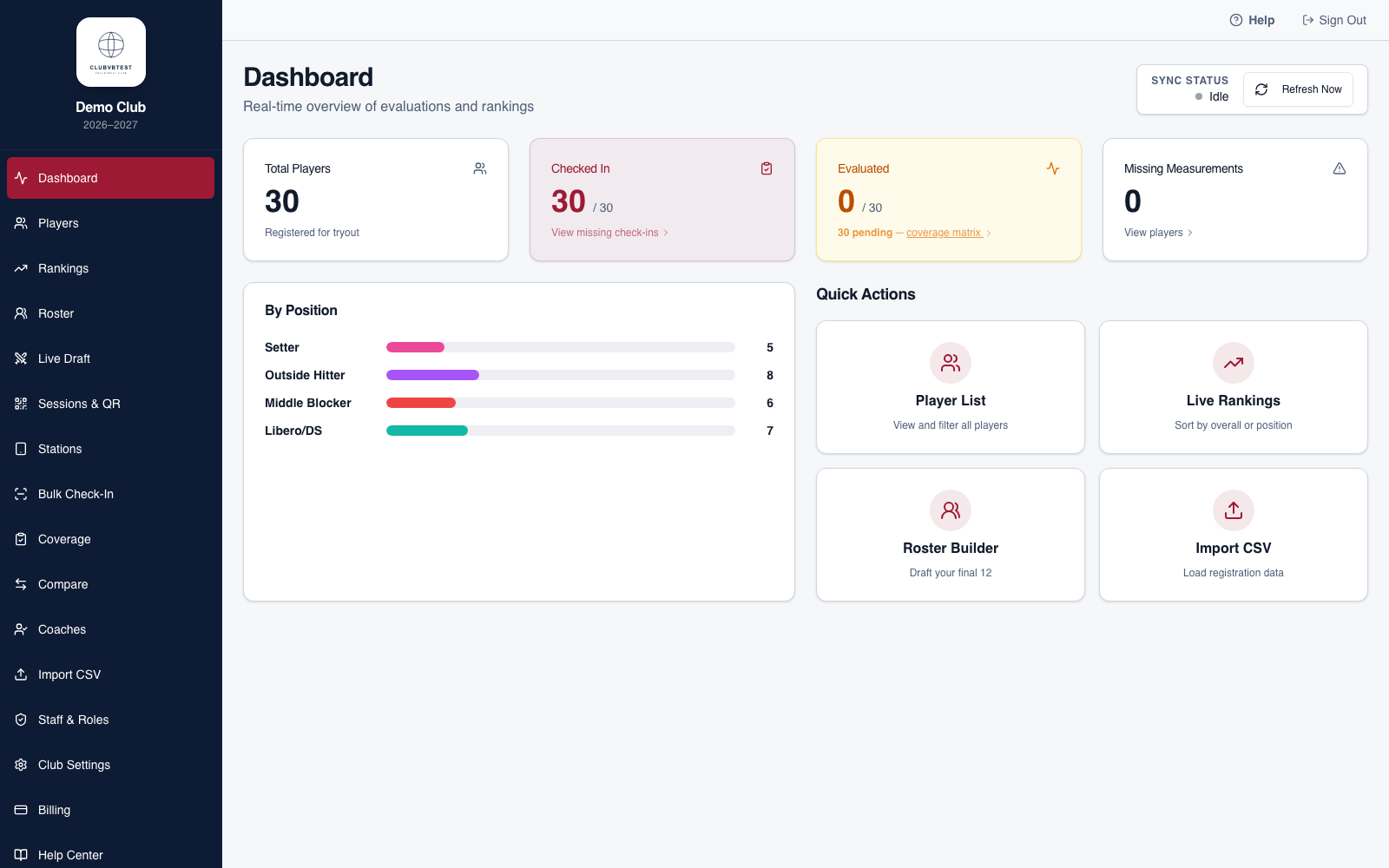
- Total Players — everyone imported for this tryout.
- Checked In — players who've scanned in or been checked in via Bulk Check-In.
- Evaluated — players who've received at least one score from a coach.
- Missing Measurements — players whose height, reach, or vertical hasn't been recorded.
- The By Position breakdown and Quick Actions panel give one-click shortcuts to Player List, Live Rankings, Roster Builder, and Import CSV.
Account Setup & Branding
Club Settings controls how your club looks across the whole app — the sidebar, station screens, and the live rankings board.
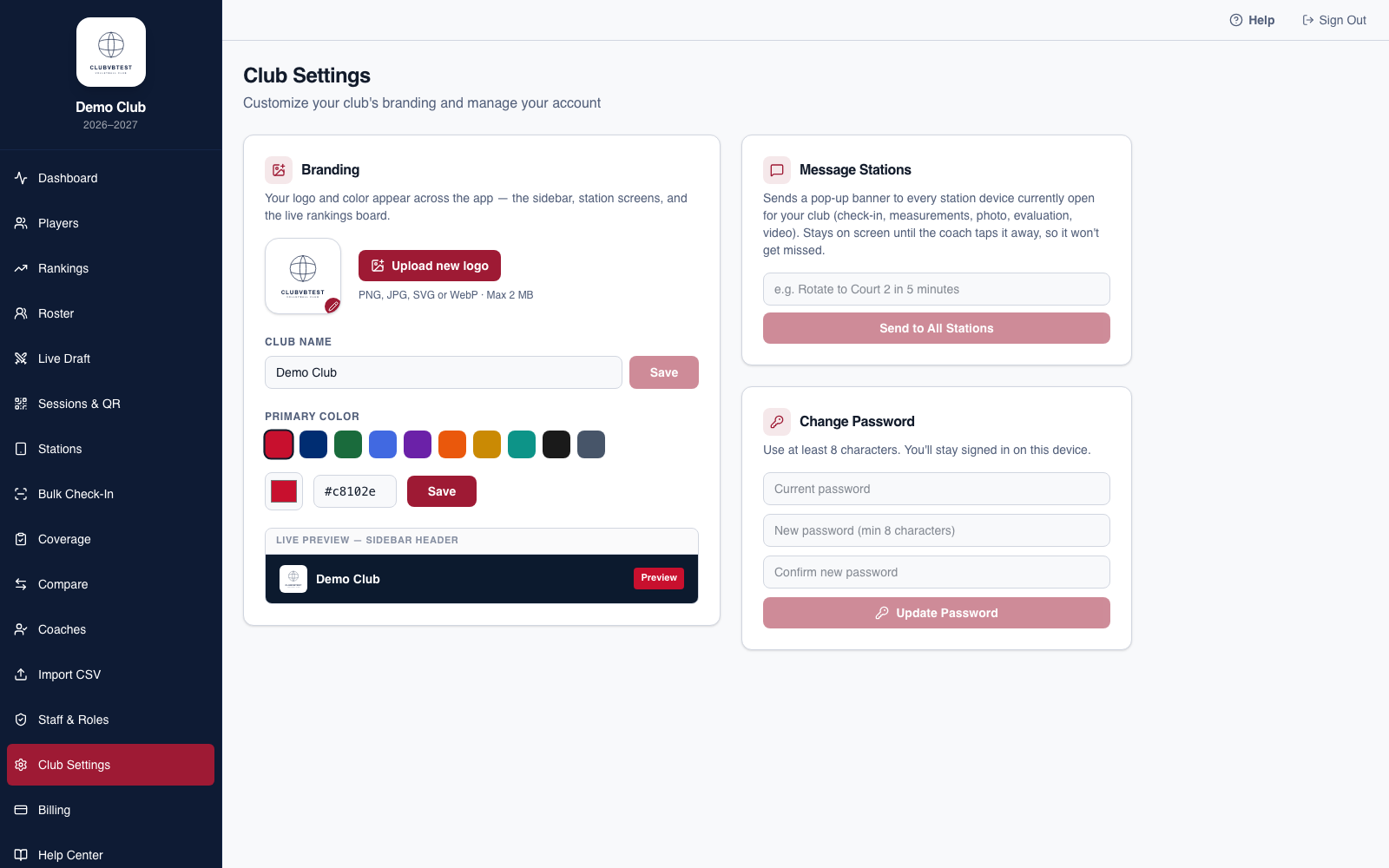
Upload your logo and set your color
- Click Club Settings in the sidebar.
- Click Upload new logo — PNG, JPG, SVG, or WebP, up to 2 MB.
- Update your Club Name and click Save.
- Under Primary Color, pick a preset swatch or type a custom hex value, then click Save. This repaints the sidebar and every button accent across the app.
- The Live Preview panel shows exactly how your logo and color will look in the sidebar before you commit to anything.
Creating a Tryout (Sessions & QR)
A session tells the check-in station which event and age group is live right now, and generates the QR code players scan to check themselves in.
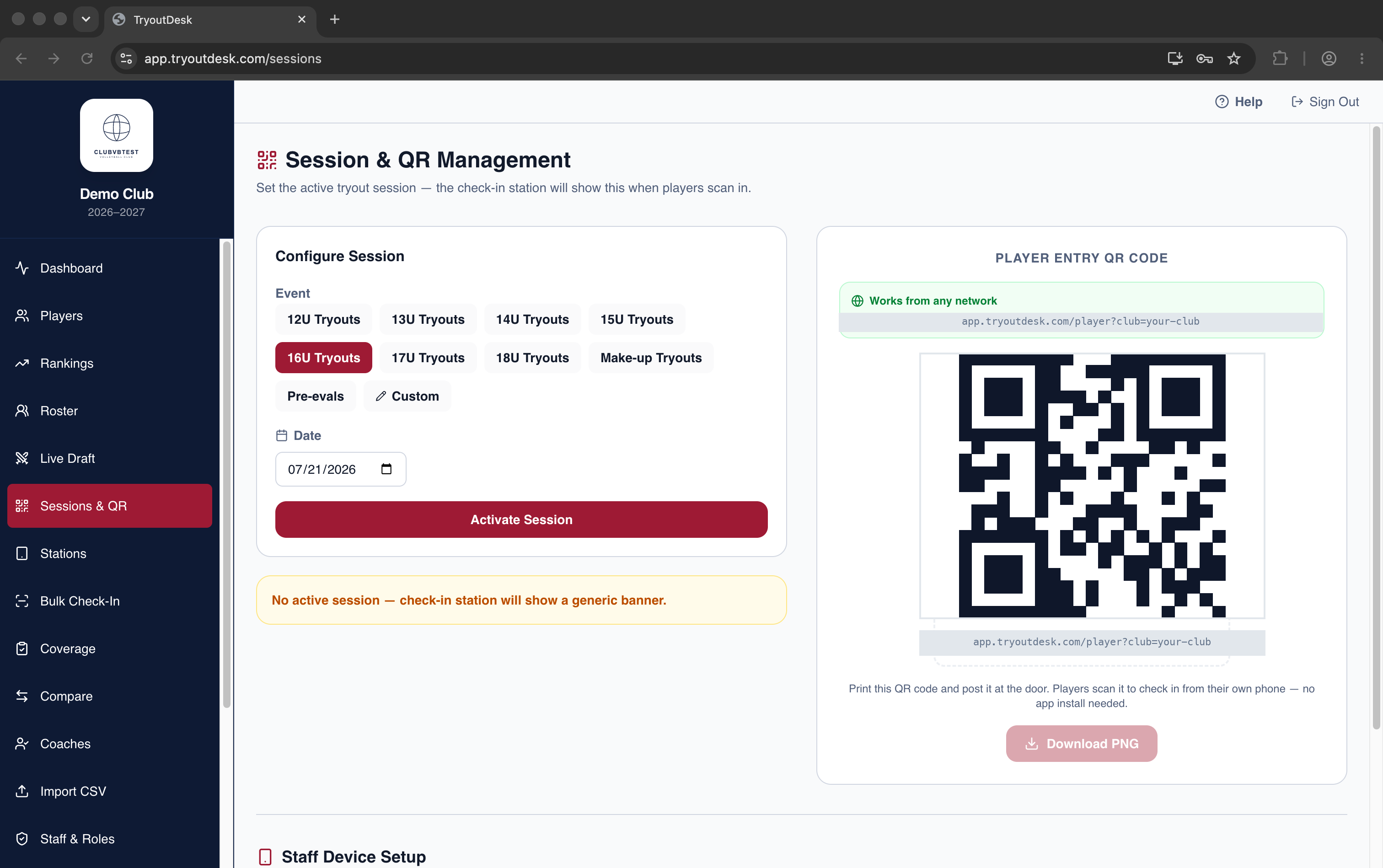
Activate a session
- Click Sessions & QR in the sidebar.
- Pick an age group preset (e.g. 16U Tryouts) or click Custom to type your own event name.
- Set the date and click Activate Session.
- The Player Entry QR Code updates on the right — this is what you print and post at the door.
Importing Players
Load your roster from a CSV file or sync live from a Google Sheet — either way, re-importing updates existing players by jersey number instead of creating duplicates.
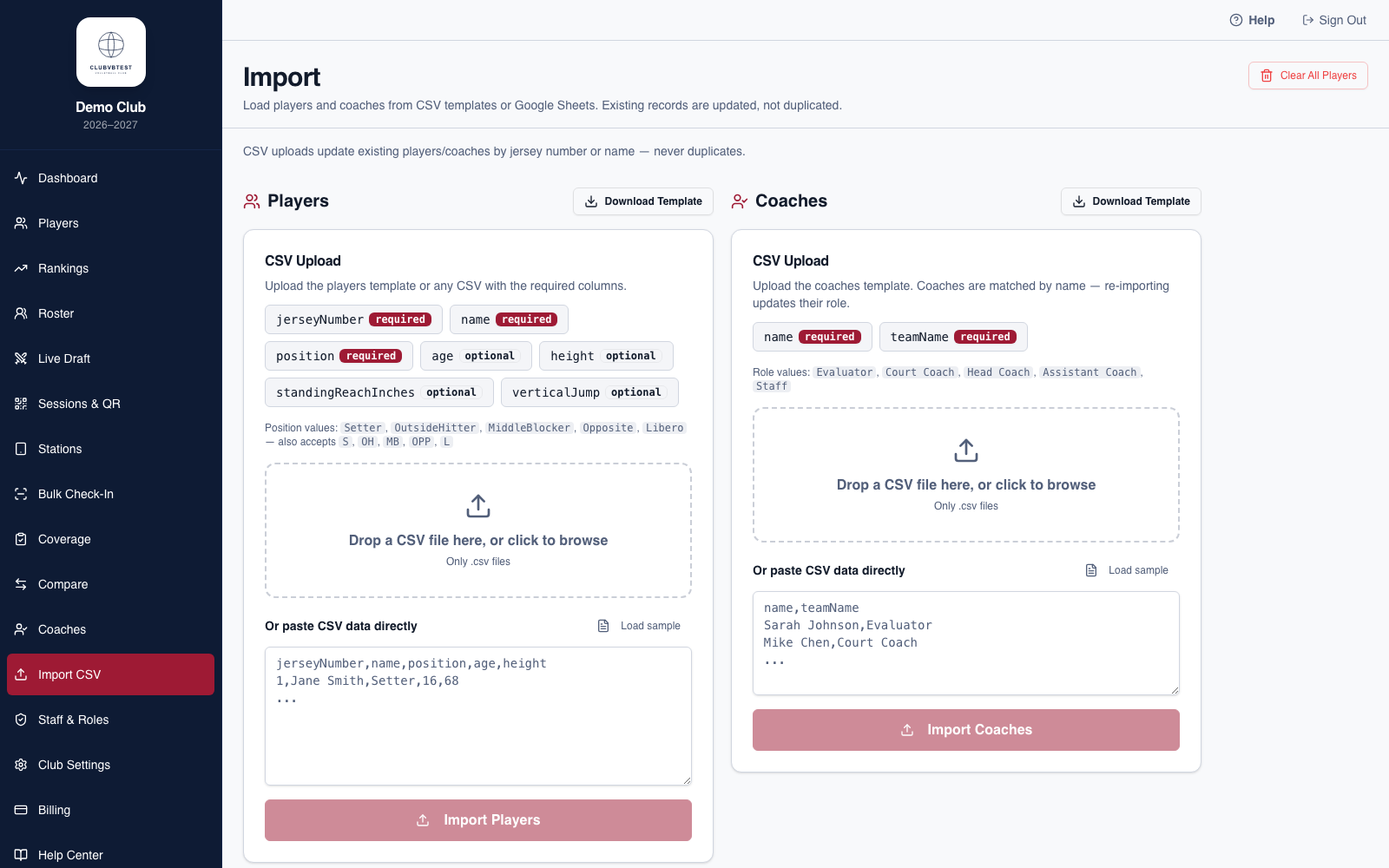
CSV upload
- Click Import CSV in the sidebar.
- Click Download Template for the correct column headers, or drop your own CSV that includes
jerseyNumber,name, andposition(required). - Drag your file onto the drop zone, or paste CSV text directly into the box.
- Click Import Players.
Google Sheets sync
- In Google Sheets, click Share → set access to "Anyone with the link" (Viewer).
- Paste the sheet URL into the Google Sheets Sync card and click Sync Now.
Player List
Your master roster — every player registered for the tryout, searchable and filterable in one place.
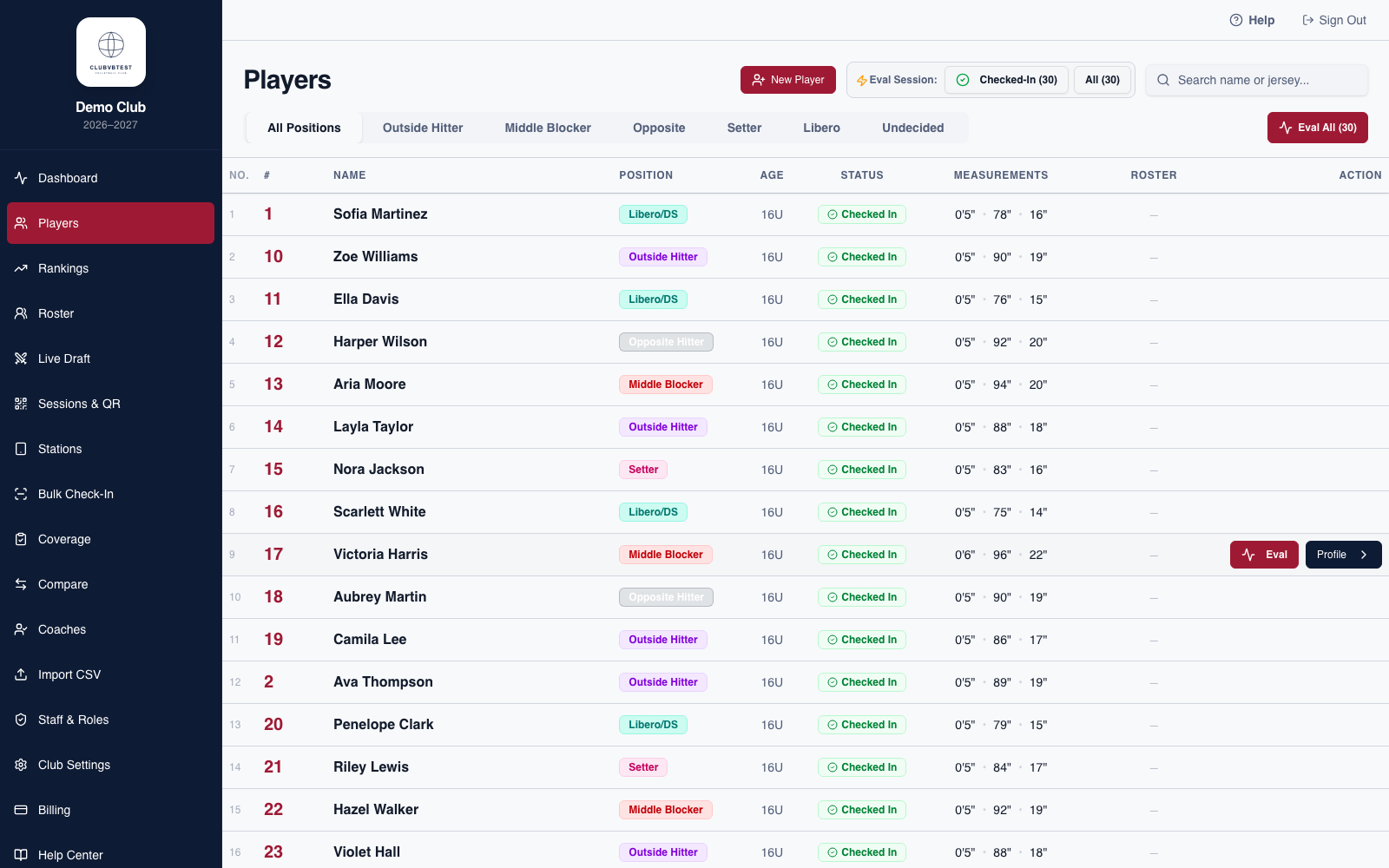
- Add players manually with New Player, or use Import to load a CSV or Google Sheet.
- Filter by position or age group using the tabs. Search by name or jersey number.
- Click a player's name to open their profile — scores, measurements, photo, and notes.
- Use the lightning bolt icon to start scoring a player directly from this list.
Managing Coaches
Add the people evaluating players and running the tryout, before assigning them a station and PIN.
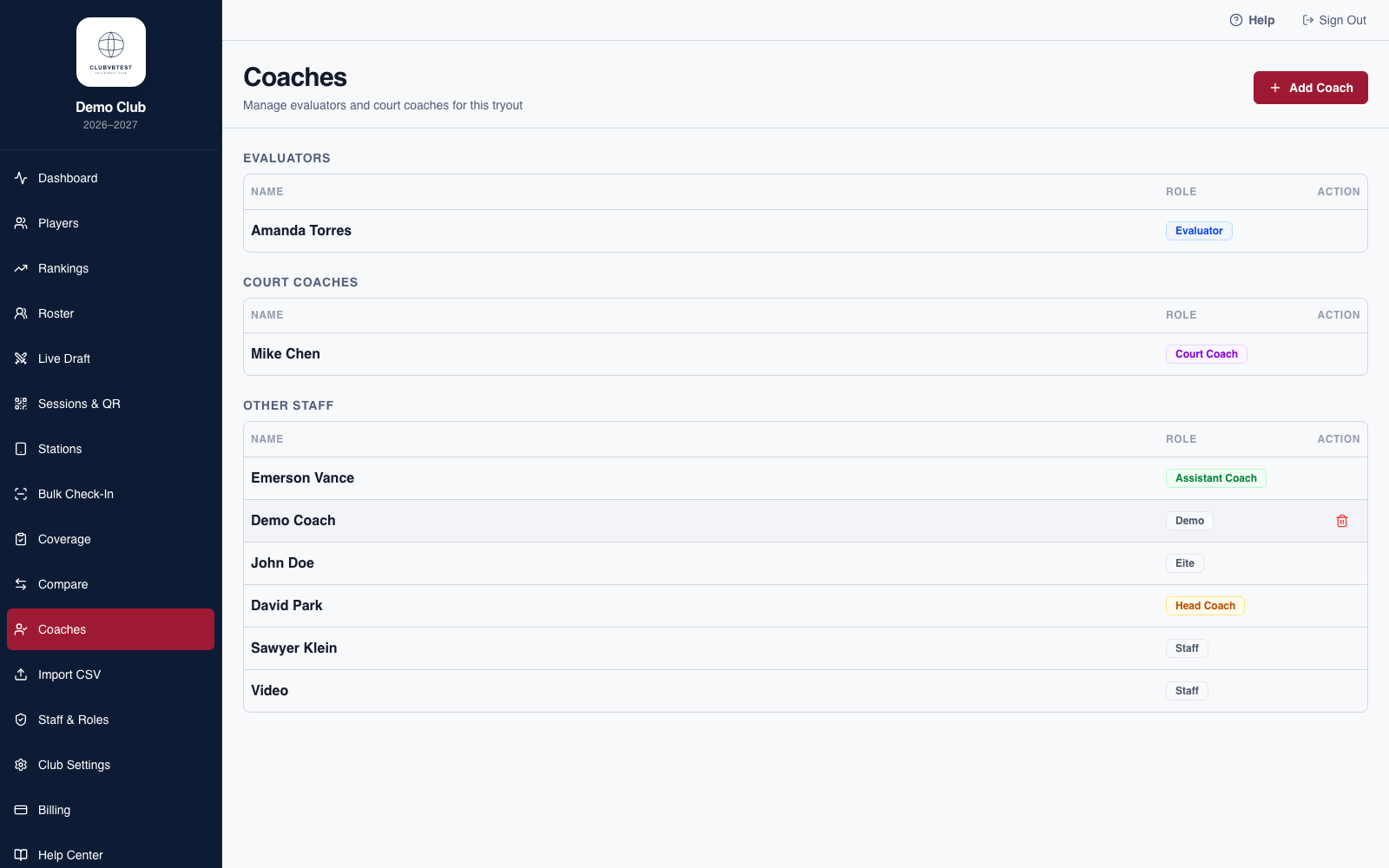
- Click Coaches in the sidebar, then Add Coach.
- Enter their name and role — Evaluator, Court Coach, Head Coach, Assistant Coach, or Staff.
- Coaches with the role Evaluator appear in the evaluator selector on the Evaluation station.
- Next, head to Staff & Roles to give them a station and PIN.
Staff & Roles (PINs)
Every coach or staff member needs a PIN before they can log in to a station on tryout day.
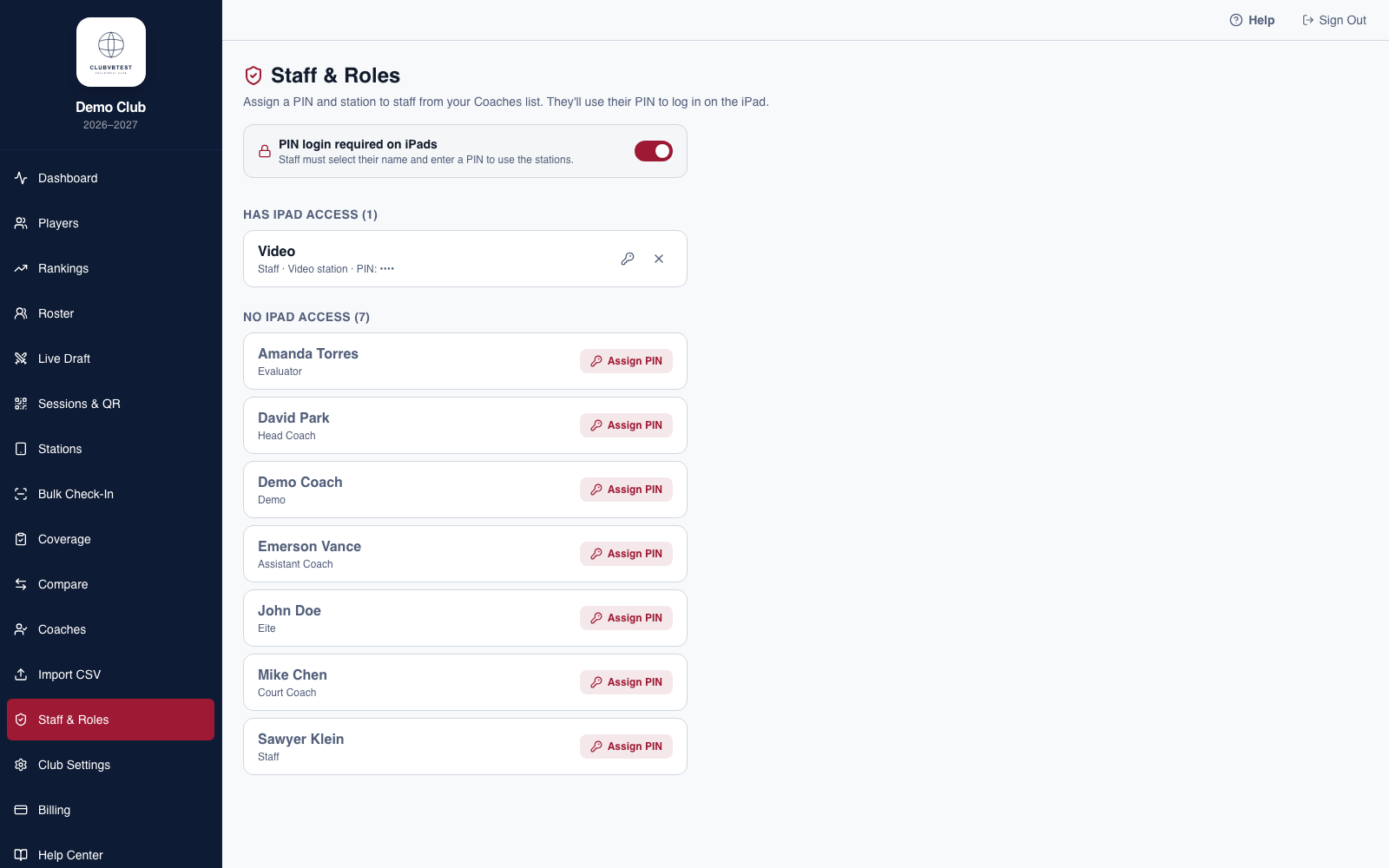
- People come from the Coaches tab — add them there first if they don't appear here.
- Go to Staff & Roles and click Assign PIN next to their name.
- Pick their station and set a 4-digit PIN.
- Their role determines which station they land on when they log in — see Stations.
Stations
Stations are the devices your staff use during a tryout — one shared link, five jobs. Each person is routed automatically to their assigned station after logging in with a PIN.
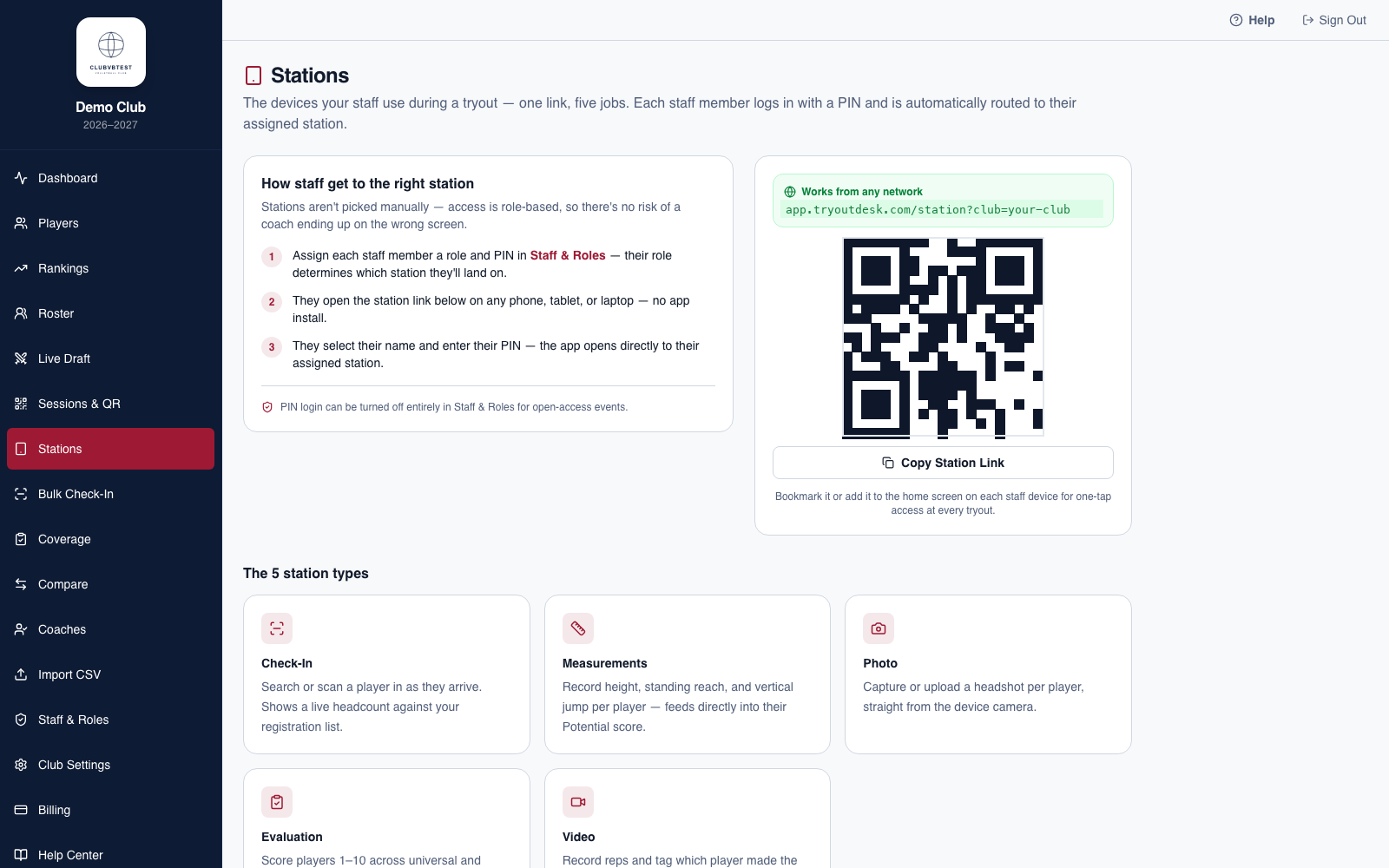
- Assign roles and PINs in Staff & Roles (previous section) — this determines each person's station, not a menu they pick from.
- Share the station link from the Stations page — works on any phone, tablet, or laptop, no install.
- They select their name, enter their PIN, and land directly on their assigned station.
Check-In Day
Two ways to check players in: a self-serve QR code players scan with their own phone, and the Check-In station where staff search or scan jersey numbers.
Self check-in (QR code)
- Print the QR code from Sessions & QR and post it at the gym entrance.
- A player scans it, taps a search box that says "Search your name to check in", and finds their name or jersey number.
- They confirm "Is this you?" and tap "I'm here — Check In ✓".
- If they're not found (genuinely new), they see a "Register as a new player" link.
Staff-run check-in
For walk-ups or players without a phone, a staff member logs into the Check-In station (see Stations) and searches or types the player's jersey number directly.
Coach Evaluation
The core of tryout day. Coaches open the Evaluation station on their phone or iPad, score each player with a tap, and move on — no clipboards, nothing to submit.
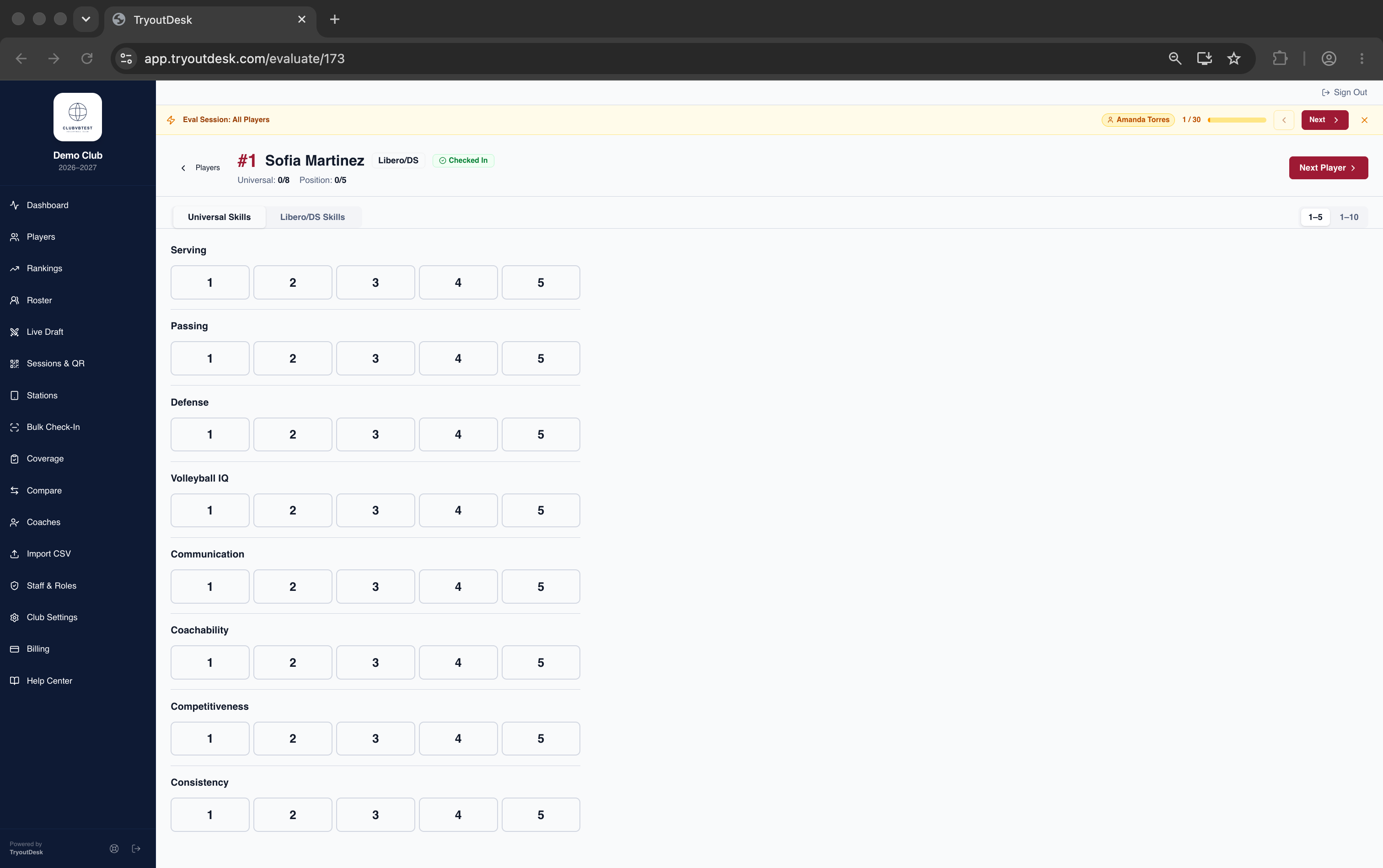
- The eval screen shows one player at a time, with a progress bar tracking the session.
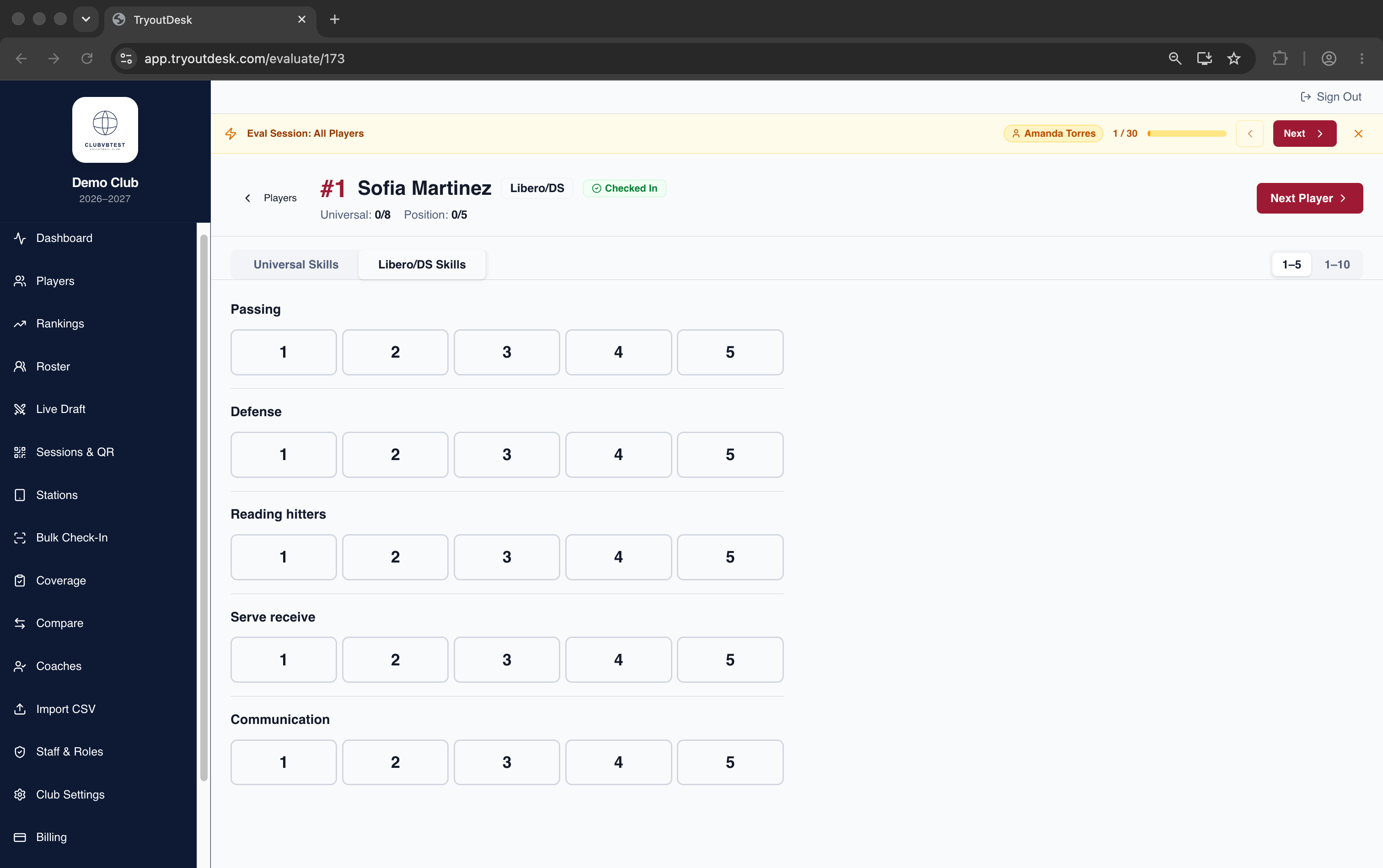
- Switch between Universal Skills (Serving, Passing, Defense, Volleyball IQ, Communication, Coachability, Competitiveness, Consistency) and the player's Position Skills tab.
- Tap a score for each skill. Toggle between 1–5 and 1–10 scoring with the buttons in the top right.
- Tap Next Player to advance.
To check what's still missing mid-tryout, the director can open Coverage in the sidebar — it shows every player's evaluation status by skill, filterable by coach or age group.
Evaluation Coverage
A real-time completeness check — see exactly which players still need to be evaluated, and on which skills.
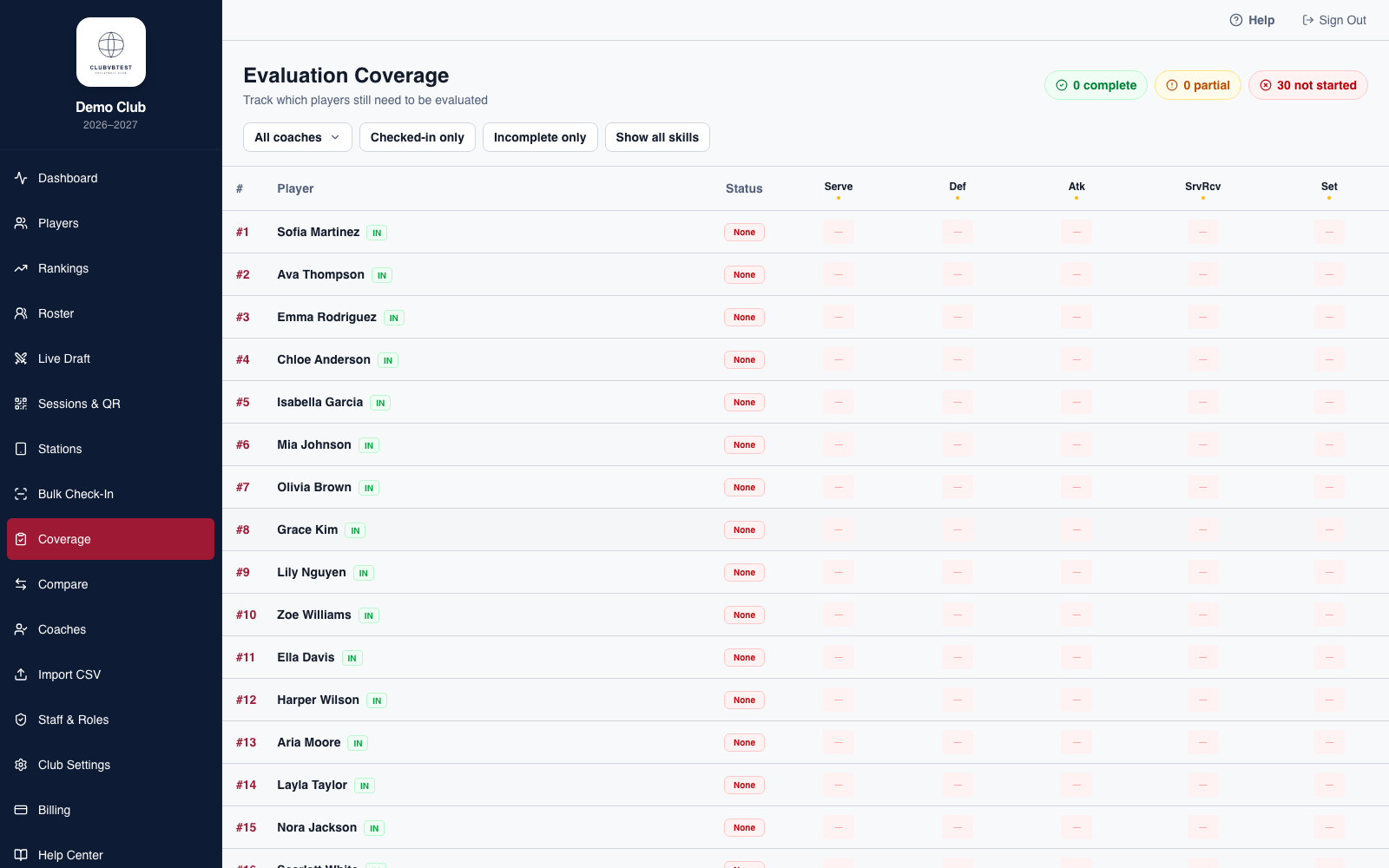
- Green checkmarks mean a player has been scored on that skill by at least one evaluator.
- Empty cells mean the skill hasn't been scored yet for that player.
- Filter by evaluator or skill using the dropdowns at the top.
- Click a player's name to open their profile and score them directly.
Video Recording
Record live reps and tag which player made the play — works on an iPad or a laptop with a webcam.
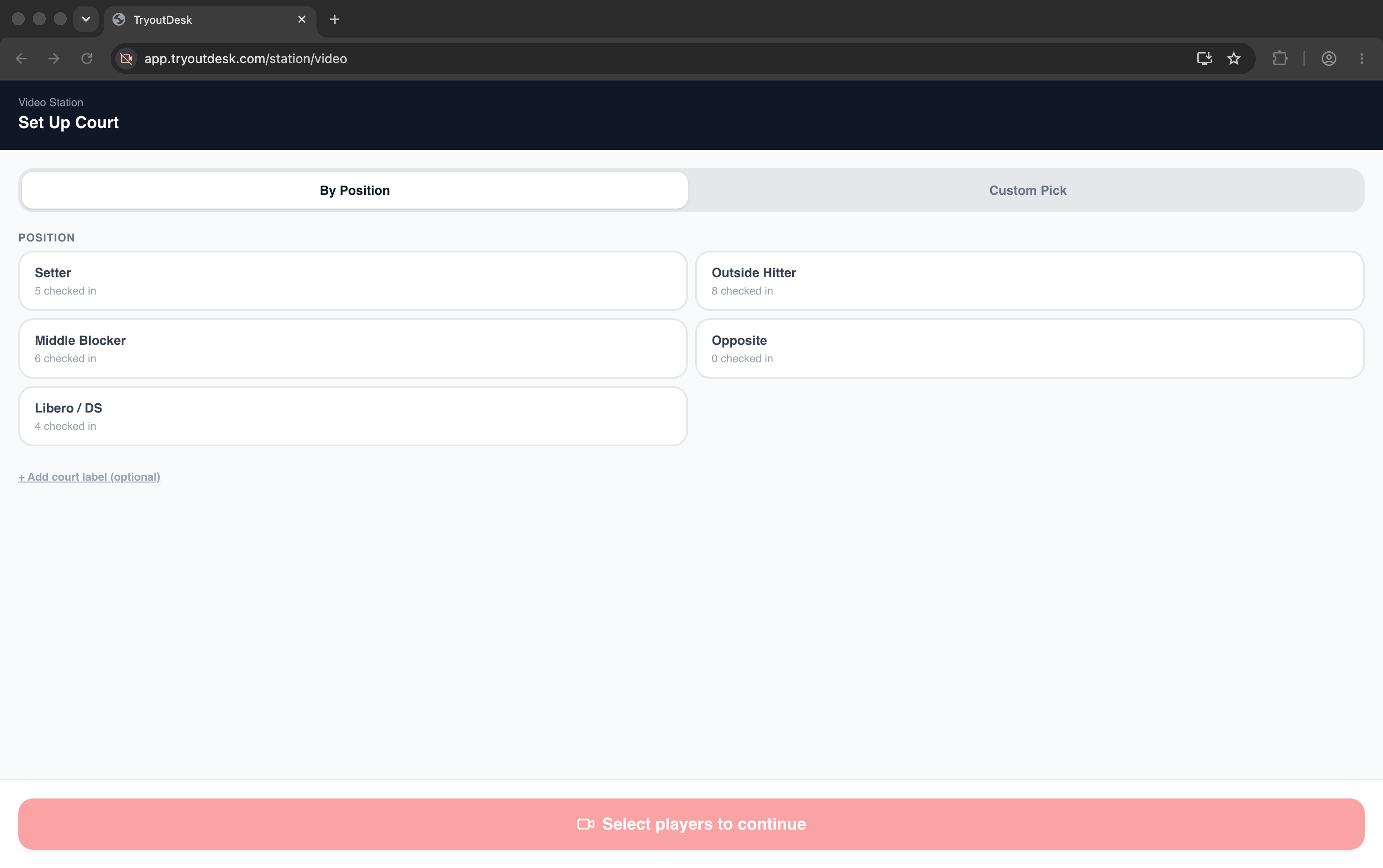
- On the Video station, select which players are on court — by position or a custom pick — then tap Start Recording.
- While recording, tag the player who just made the play by typing their jersey number on the on-screen dial pad, or a physical keyboard if you're on a laptop. The tag applies the moment digits uniquely match a player on court.
- Use the pause button to briefly stop without ending the clip.
- Use the stop button to end and save the recording with every tag attached.
- Tap Record Again to start a new clip with the same court lineup already selected.
Live Rankings & Compare
Rankings recalculate the instant a score is entered — no manual refresh, no end-of-day spreadsheet.
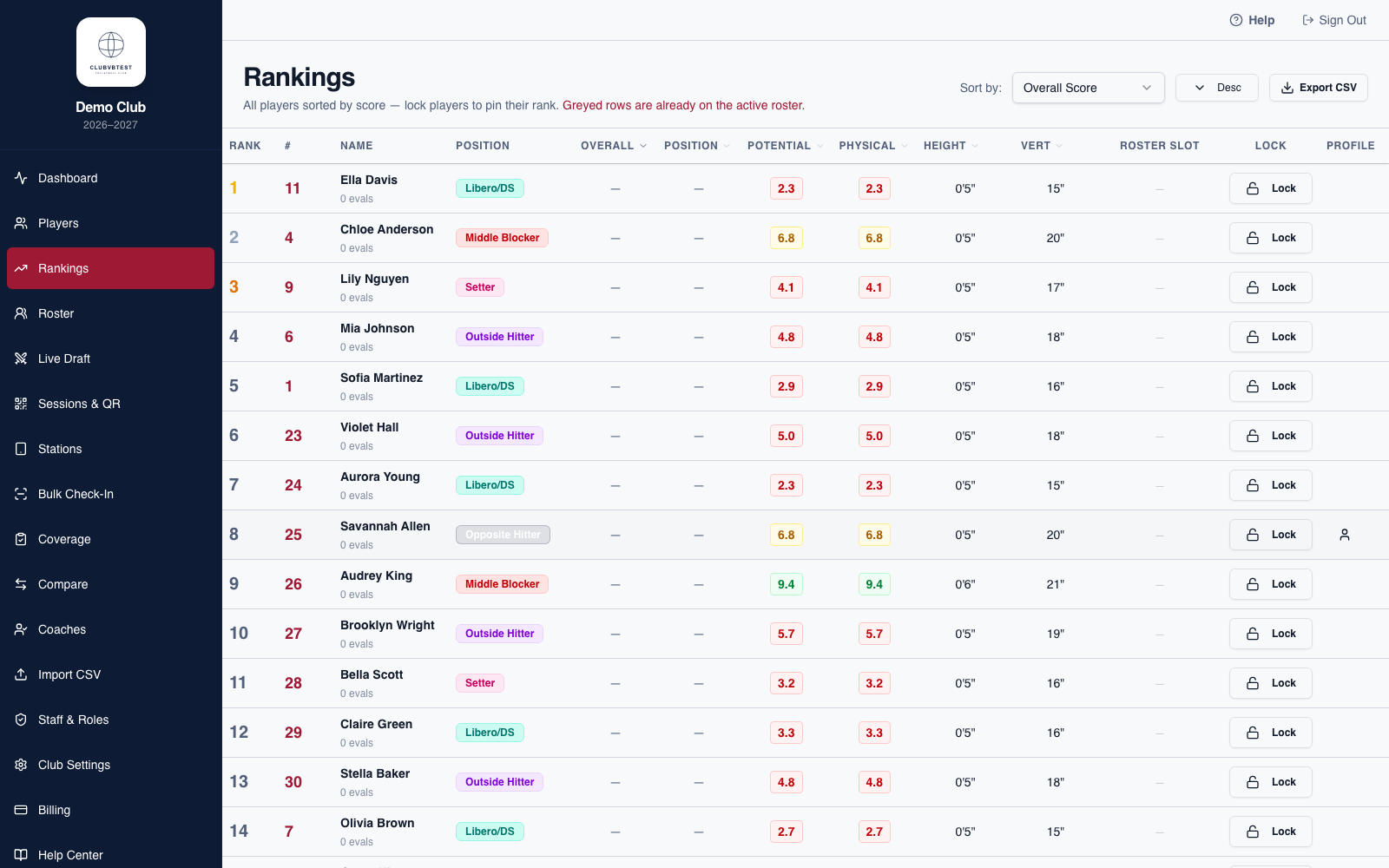
- Click Rankings in the sidebar. Sort by Overall, Position, Potential, Physical, Height/Vert, or Jersey.
- Click Lock on a player to pin their rank so new scores don't bump them as the day goes on.
- Greyed-out rows are players already on the active roster.
Evaluators also get a lightweight version of this right at their station: on the Evaluation station, tap View Rankings & Compare Players to search by jersey number, filter by position, and compare two players' scores side by side — read-only, no export.
Live Draft & Rosters
Multiple coaches build their teams at the same time, each on their own device, straight from the ranked player pool.
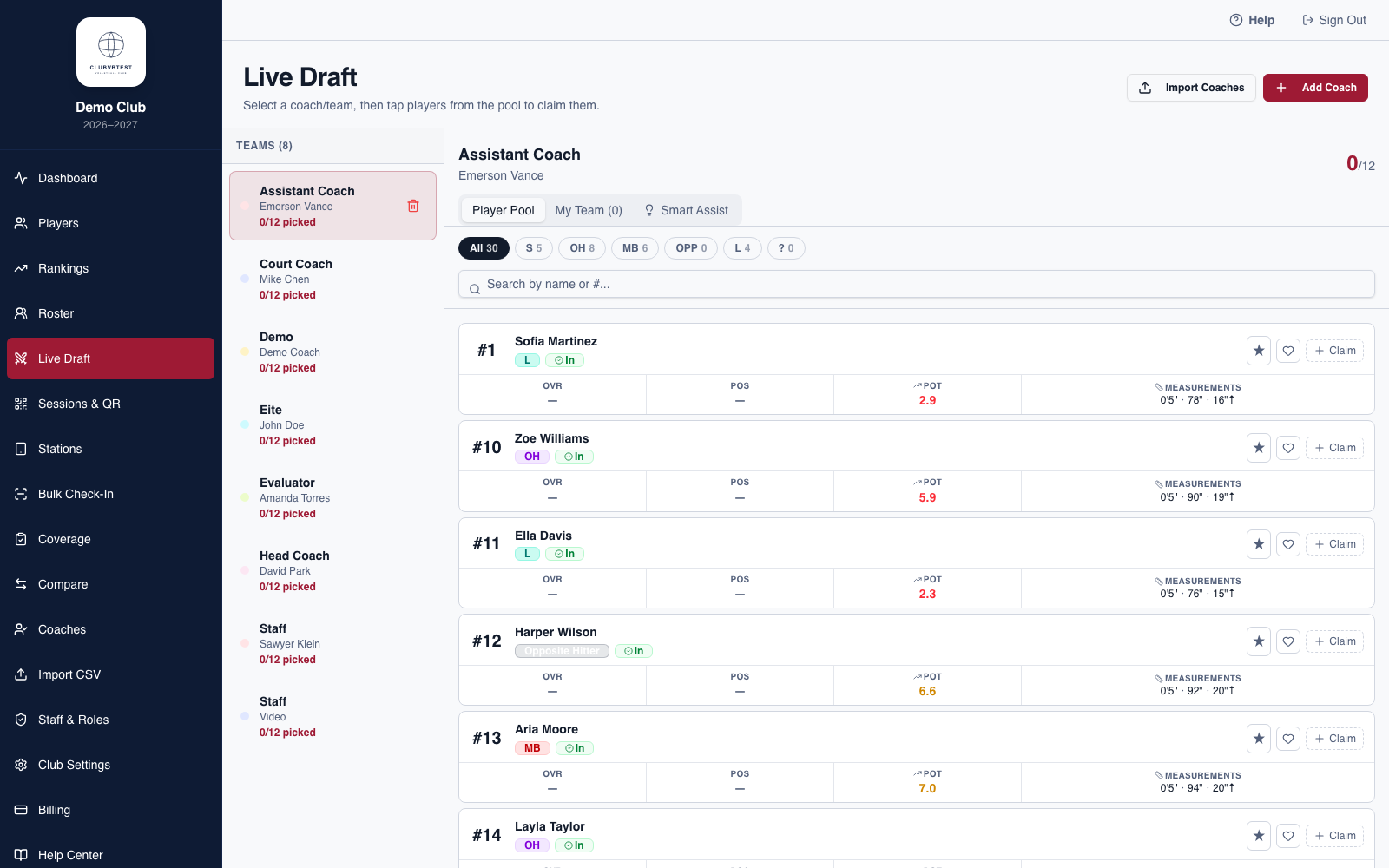
- Click Live Draft, then Add Coach for each team (or Import Coaches from a CSV).
- Select a team from the left panel to open their draft board — Player Pool on one tab, My Team on the other.
- Tap the ♥ heart to wishlist a player, or + Claim to draft them onto the team.
- In My Team, tap the 🔒 lock icon on a claimed player to lock them in.
Claiming vs. locking
These are two separate steps. Claiming adds a player to your team as a pick — other coaches can still see them in their pool. Locking is what actually takes a player off the board: once locked, other coaches see a 🔒 Locked by [Team] badge instead of a Claim button, so nobody's left guessing who has who.
Final Roster
View and manage each team's final roster once the draft is complete.
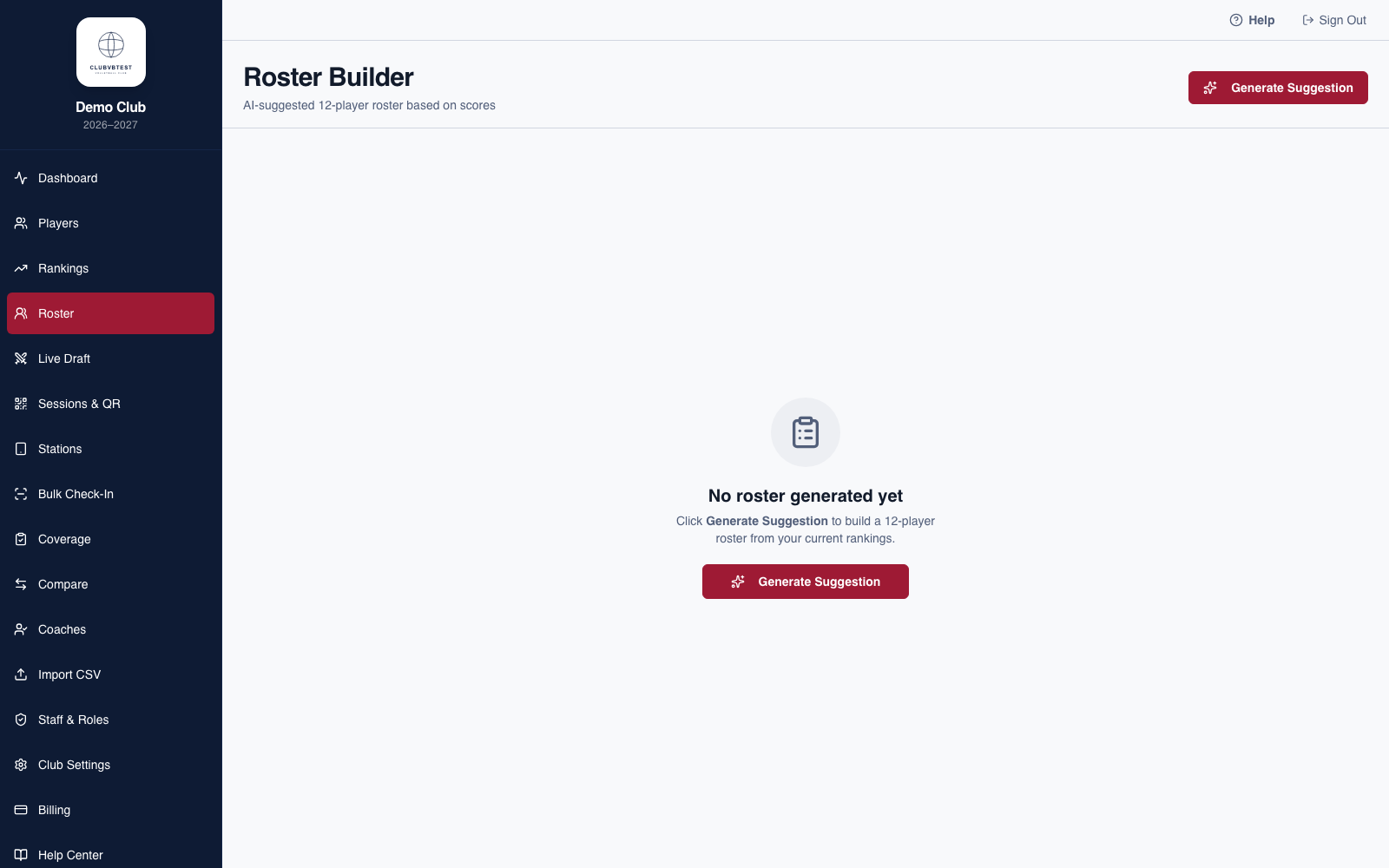
- Players claimed and locked in Live Draft appear here, grouped by team.
- Manually add or remove players from a roster directly on this page.
- Export the roster to CSV for sharing with coaches — see Export & Re-Import.
Messaging Stations
Send a pop-up banner to every open station device for your club — useful for time-sensitive alerts mid-tryout, like reminding coaches a player is missing measurements.
- Go to Club Settings → Message Stations.
- Type your message and click Send to All Stations.
- It appears instantly as a banner on every station screen currently open for your club — check-in, measurements, photo, evaluation, and video.
Export & Re-Import
Get your data out whenever you need it — rankings, rosters, and the player list all export to CSV.
- On Rankings, click Export CSV in the top right for the full ranked list with scores.
- On Roster, export a finalized team roster the same way.
- To pick up roster changes after tryout day, re-run the same CSV or Google Sheets import from Importing Players — existing players are matched and updated, never duplicated, and evaluation scores are never overwritten.
That's the full walkthrough — from club setup to final roster. Questions? Email support@tryoutdesk.com.